
- Download the theme you want from https://bestps3themes.com
- Prepare a storage media such as a Memory Stick Duo or a USB device.
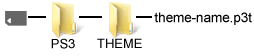
- Use a PC to create a folder named “PS3” (without the quotes) on the storage media and create a subfolder named “THEME” (must be all uppercase, again, without the quotes) within that folder.
- Copy the theme you downloaded (.p3t) to the “THEME” subfolder on the storage media.
- Insert the storage media in the PS3 system.
- In the XMB (Xross Media Bar), go to
 (Settings) >
  (Theme Settings) > [Theme], and then select [Install].
 - Select the theme that was saved on the storage media. Note: The theme name may be different than the actual theme.
After installation has been completed, go to (Settings) > (Theme Settings) > [Theme] again, and then select the theme.
- Go to https://bestps3themes.com on the PS3’s Internet Browser.
- Download the theme you want to install. The file will be saved to the hard disk.
- Go to (Settings) > (Theme Settings) > [Theme] to select the theme file that was saved on the hard disk.
- Select [Apply].
Changing the background while keeping custom icons
This is if you like the icons but don’t like the theme’s background(s) or want a different wallpaper
- Go to (Settings) > (Theme Settings) > [Background]
- Select [Original] to display the PS3 wave (no background)
- Select [Wallpaper] to display a wallpaper of your choice
- Select [Theme Name] to use the background(s) from the theme
Changing background brightness
If a theme has a white or bright background, it may be hard to see the XMB text
- Go to (Settings) > (Theme Settings) > [Background] > [Brightness]
- Select the desired brightness (-1, -2, -3, -4, or -5)
[contentwidget themeid=’1375′]
3 Replies to “Installing PS3 Themes”